In this post entitled “Musician”, there’s an image that I would like to edit. And you may edit images from the management screen as well.
To do this, select an article from “Posts”. Or add a new post with “Add New”.
-
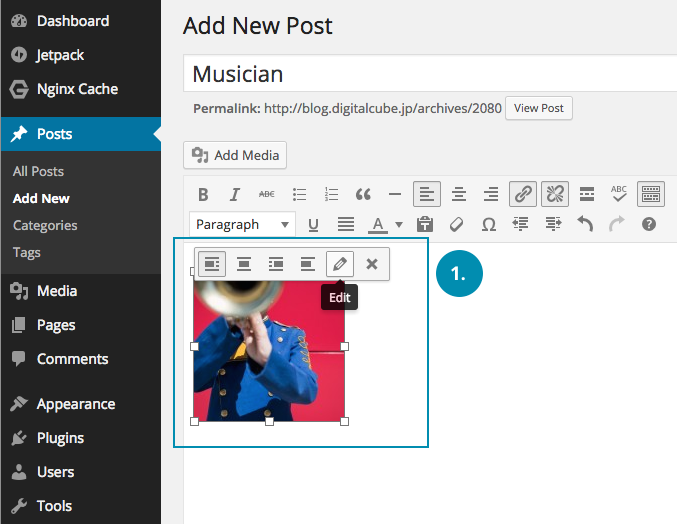
Click on the image and select** “Edit”**.
-
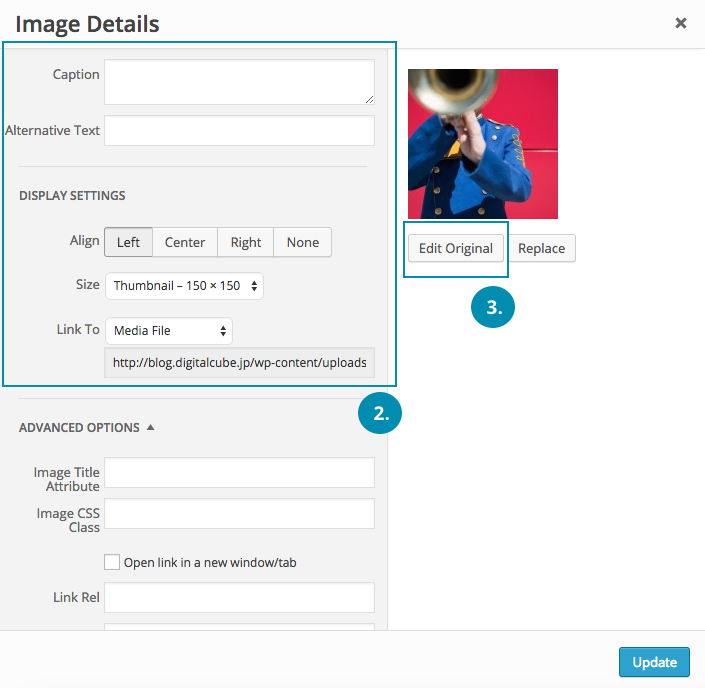
You may choose to insert some caption, or edit the display settings by aligning the image to the left, center or right.
-
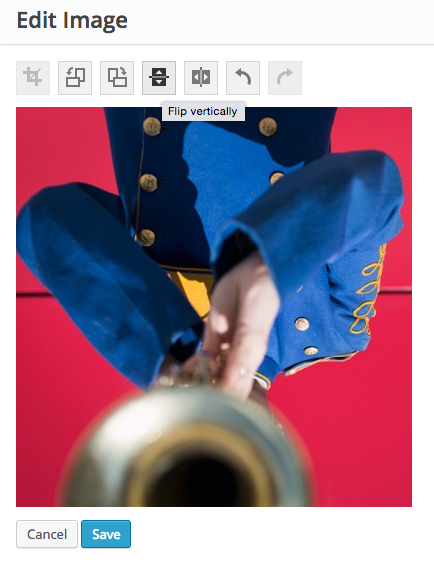
If you click “Edit Original”, it will take you to another screen that shows:
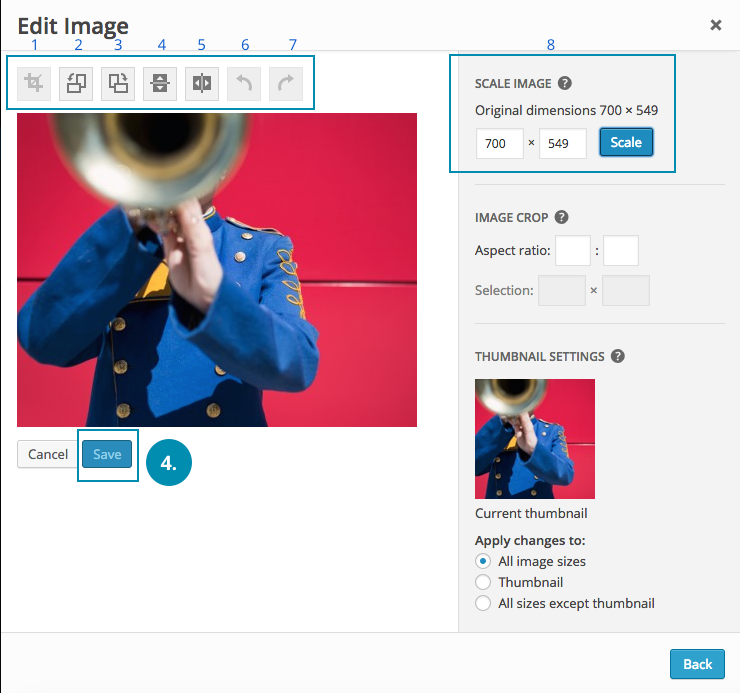
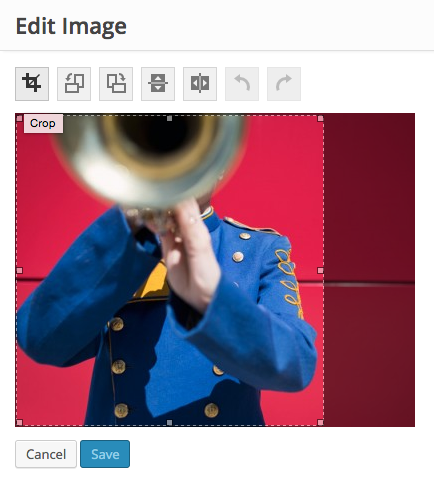
- Crop
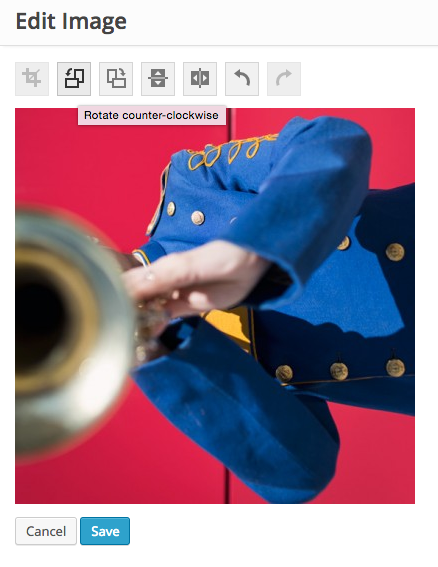
- Rotate Counterclockwise
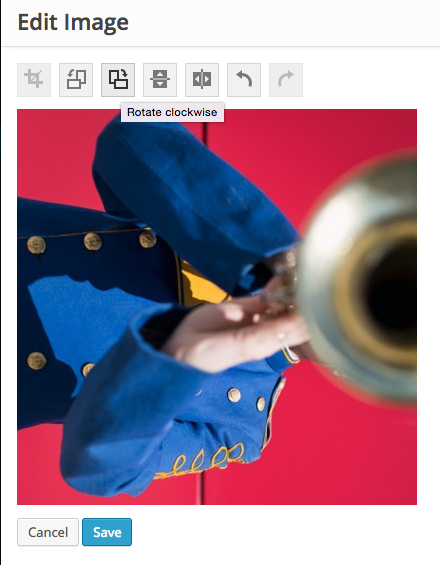
- Rotate Clockwise
- Flip Vertically
- Flip Horizontally
- Undo
- Redo
- Scale
-
Click “Save”.
-
After editing the image, click “Publish”.
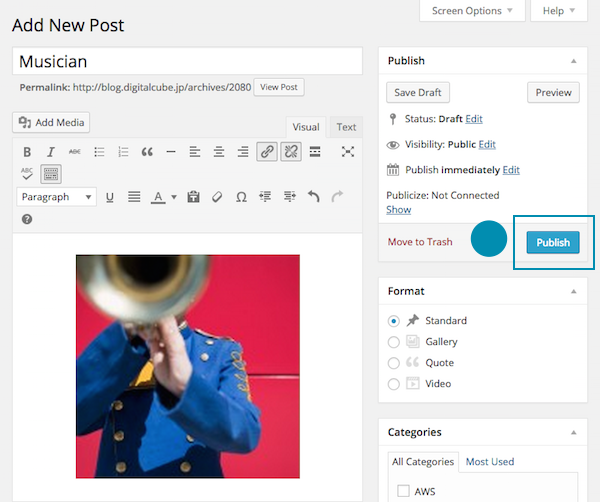
Here’s how your image will look like when you edit it:
Crop:
Rotate Counter-clockwise
Rotate Clockwise
Flip Vertically
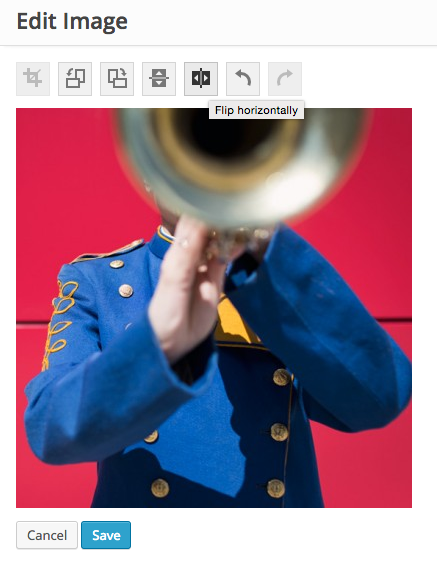
Flip Horizontally